User Management Screen
The User Management screen is used to add, edit, and deactivate users in the XtreamService application.

|
To access the User Management screen, click the |
 (More) icon and then click the User Management link in the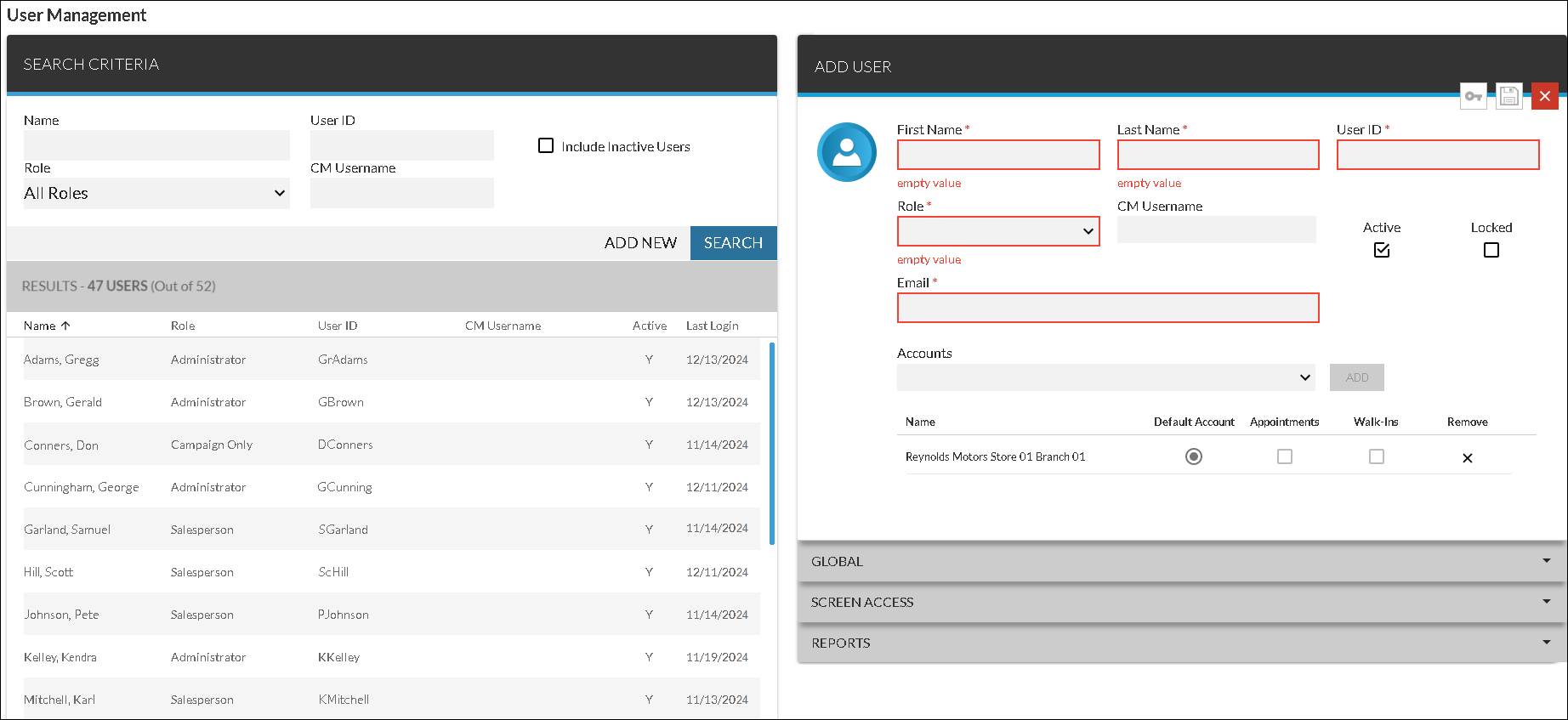
To search for a user record, make entries in the fields in the Search Criteria panel and click the SEARCH button. User records that match the search criteria display in the Results section.
To add a new user record, click the ADD NEW button. The Add User panel displays, where the user's information can be added. For a procedure on adding a new user, refer to How to Add a New Employee. To edit an existing user, click a row in the Results section. The Edit User panel displays, where information for the corresponding user can be updated.
User records can also be deactivated by clearing the Active check box in the Edit User panel. When a user is deactivated, the user cannot sign on to the XtreamService application.
If a user attempts to sign on and enters an incorrect password five times, the user will be locked out and the Locked check box is automatically selected. The user is not able to sign on to the XtreamService application until his password is reset and his profile is unlocked. To unlock a user profile, clear the Locked check box and save the profile.
Click here for a list of products that may be mentioned in this help file.